Kodi NFO Files Not Loading: Names, Sources and Refresh
Check why Kodi ignores an NFO or keeps old metadata. Learn when to refresh an existing item and how to review NFO files with MetaTana.
An NFO beside a video does not mean Kodi has read its latest contents. First work out whether the title is missing from the library or already there with old details. Keep a copy of your NFO before editing it.
1. Match the NFO filename to the video
For a movie or episode, use the video filename with .nfo in place of the video extension. Show-level details belong in tvshow.nfo in the show folder.
Movies/
  Low Orbit (2024)/
    Low Orbit (2024).mkv
Low Orbit (2024).nfoCheck for hidden extensions such as .nfo.txt. Also check that Kodi can read the folder through its configured source, especially when Kodi and your editor run on different machines.
Kodi's alternative movie.nfo name depends on the Movies are in separate folders that match the movie title setting. With that setting enabled, an old movie.nfo can take priority over a filename-matched NFO. Compare both files before changing either. See Kodi's NFO filename rules.
2. Check what is inside
Use UTF-8 XML with the correct outer element: movie, tvshow or episodedetails. A plain note saved with an .nfo extension is not a metadata NFO.
Check the title and provider IDs as well as the XML structure. A file can be readable but still describe the wrong movie. MetaTana's NFO reference shows the fields it writes; Kodi also publishes NFO templates.
3. Check the source's content setting
Make sure the folder is included in a Kodi source with the correct content type. Local information only relies on local metadata; missing NFOs will not get an online fallback. Choose that mode only when that is the workflow you want. See Kodi's NFO guide.
Do not change every source to solve one title. Compare a working title in the same source with the affected one first.
4. Refresh an existing item
A library update can add new titles. To read changes to an item already in Kodi, open its Information page and choose Refresh. Review any prompt about local information before proceeding. This distinction is in Kodi's scanning instructions.
Check one changed field afterward. If it is still wrong, return to the exact file and source Kodi is reading. Rebuilding the entire library is a poor first step for a single stale item.
If the title and plot are correct but the poster is still wrong, follow the Kodi local artwork guide. It covers competing poster filenames, choosing an image and checking Kodi's cache without rebuilding the library.
Write and review NFO files with MetaTana
MetaTana can read existing NFOs, scrape missing metadata and write the Kodi format. It also keeps uncertain matches in the Inbox for review.
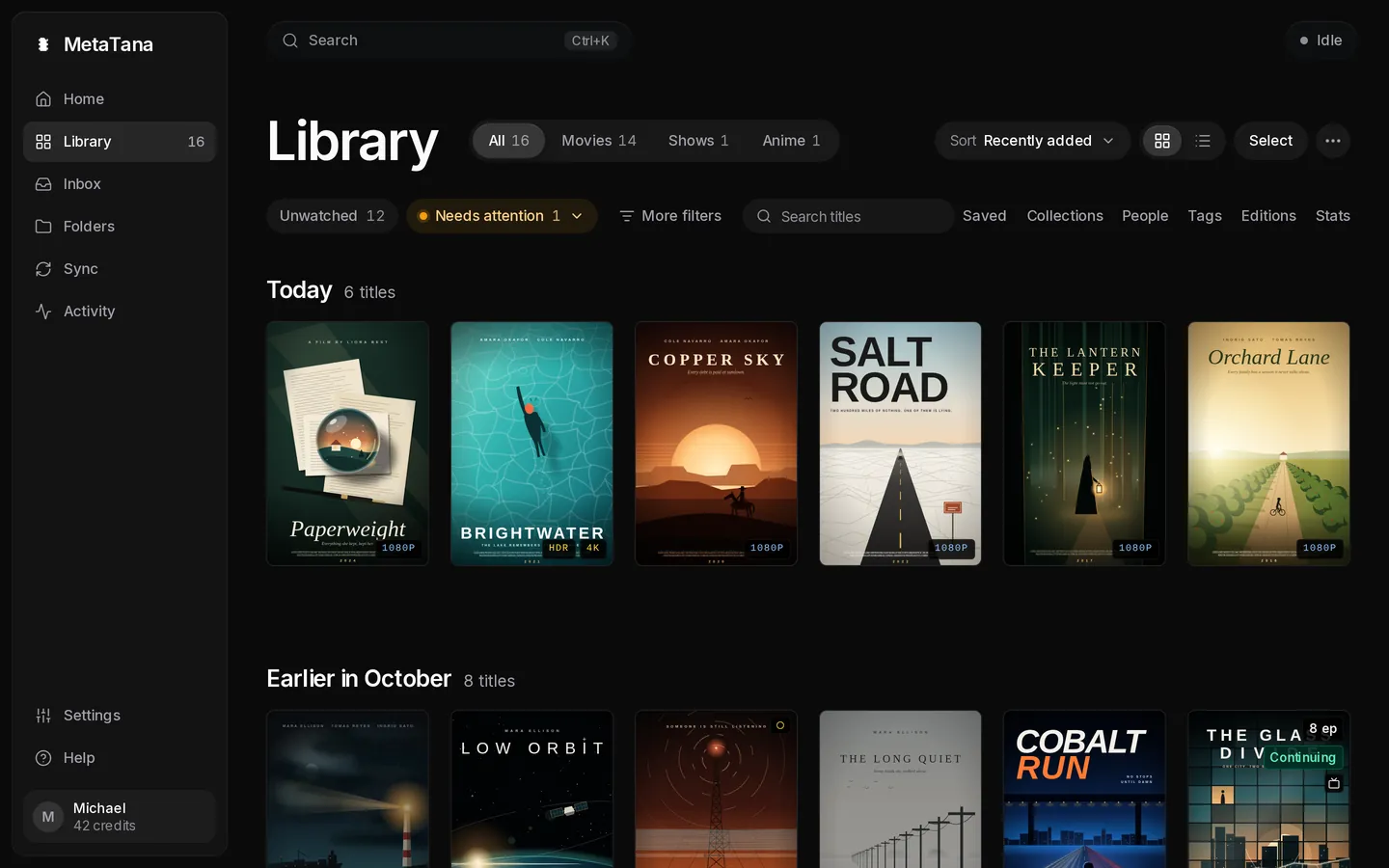
- Add one folder. Choose the Kodi preset and set renames to Ask first or Never.
- Check the match and provider ID. Free scraping needs your own free TMDb API key; Pro includes hosted metadata without a key.
- Approve NFO writes, or use Rewrite NFO after reviewing an existing item's metadata.
- Refresh that item in Kodi. Check the title and artwork before changing more files.
Download MetaTana, or see the Kodi NFO manager page for supported files and Undo. If your library already has hand-edited metadata, read Edit NFO files safely before a bulk rewrite.