Fix Emby Showing the Wrong Movie, Poster or Version
Check the match, local NFO files and refresh settings in Emby. Use MetaTana to review names and metadata before changing more of your library.
Start with one wrong item. A different film, an old poster and two versions shown separately need different fixes. Note the file path and take a copy of any custom NFO or artwork before changing it.
1. Check the title and provider ID
In Emby, open the item's menu and choose Identify. Search for the correct title and year, or use its provider ID. Check the result before saving. If only the picture is wrong, use Edit Images instead of changing the match.
Emby's Metadata Manager guide explains both tools. Keep a note of the right ID so you can compare it with the files on disk.
2. Check the movie folder
Use a separate folder for each movie, with the title and year in its name. Emby also accepts provider IDs such as [tmdbid=272]:
Movies/
  Batman Begins (2005) [tmdbid=272]/
Batman Begins (2005) [tmdbid=272].mkvFor multiple versions, Emby expects one folder and filenames that begin with that folder's name, followed by - and a version label. See Emby's movie naming rules. Check naming before trying to merge entries by hand.
Our Emby multi-version guide walks through the folder layout, subtitle matching and playback checks before you remove any duplicate copies.
3. Check local NFO files before another scrape
An NFO is a text file beside the video containing metadata. Open the relevant file and compare its title, year and provider IDs with the intended movie. A stale NFO and a corrected server entry can disagree.
If MetaTana manages that folder, review its Trust existing NFOs and artwork choice. Trust preserves existing metadata; it is not a way to correct a wrong ID. See how MetaTana reads and writes NFO files.
Avoid having two tools repeatedly rewrite the same metadata while you investigate. Make one change, refresh one item, then check which value appeared.
4. Choose the refresh options carefully
Refresh Metadata can fill missing fields or replace existing details. Filling missing fields will not correct an already populated wrong title. Replacing details can overwrite edits. Replace existing images can also remove custom artwork.
Once the item is correct, save your edits. Emby supports locking fields or the whole item against later refreshes. These options are covered in its metadata guide.
Check the title, year, poster and version selector before repeating the fix elsewhere.
Review more titles with MetaTana
MetaTana lets you scrape, edit and review metadata outside Emby, then write Emby-format NFO and artwork beside your files.
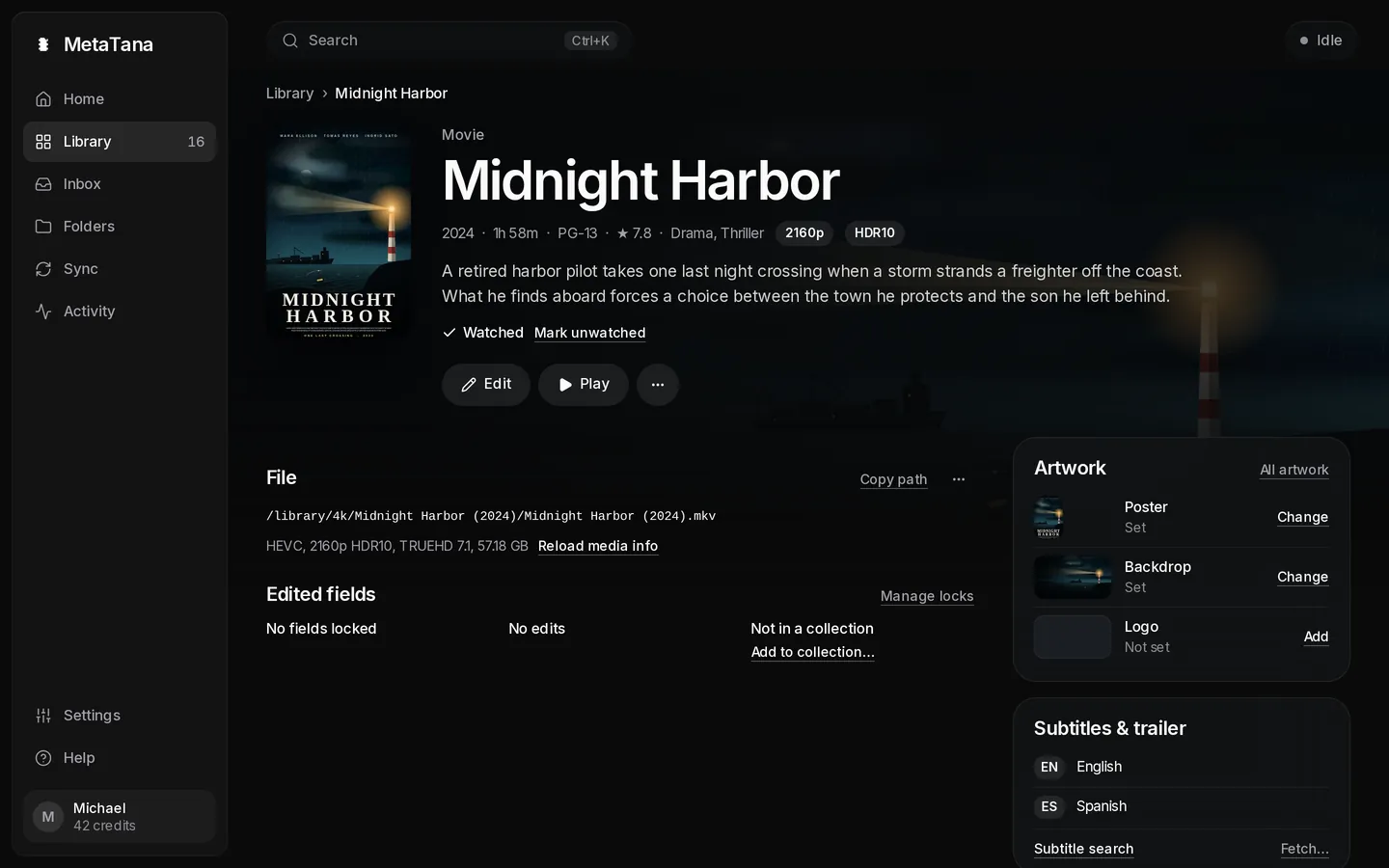
- Add a small folder and choose the Emby preset. Set Rename files in this folder to Ask first or Never.
- Review existing metadata or scrape with your own free TMDb API key. Pro includes hosted metadata without a key.
- Check the selected title and ID before approving NFO and artwork writes. Use Emby's Lock data option only after the values are right.
- Refresh the item in Emby and check the result. Review MetaTana's Activity before adding more folders.
Download MetaTana for your computer, or read the Emby metadata manager page for supported naming, NFO and sync features.
If Infuse is your player, check its server connection: a correction may need to happen in Emby first.