Fix Wrong Metadata in Infuse: Shares and Media Servers
Find where Infuse gets its metadata, fix the right item, and use MetaTana to review your library before scanning again.
Before changing a filename or poster, check how you added the videos to Infuse. A direct folder or network share and a Plex, Emby or Jellyfin connection need different fixes.
Connected to Plex, Emby or Jellyfin
Infuse displays the server's metadata in both Direct Mode and Library Mode. Check the same title in the server's own app. If it is wrong there too, correct it there first, then refresh the item in Infuse. Firecore explains this in its media-server connection guide.
Use the guide for your server:
- Plex: fix a wrong match.
- Emby: check matches, NFO and refresh choices.
- Jellyfin: check names, IDs and local metadata.
If the server already shows the right result, try the item's Refresh action in Infuse before changing the library again. Check the title, year and poster after it completes.
Reading files from a share
Open the wrong item's details and choose Edit Metadata from the menu. Search for the right title and select it. Firecore's mismatched-title guide shows the controls for each device.
Then inspect the filename. Use a recognizable movie title and year, or clear season and episode numbers for TV. Keep a note of the old name while testing one title. If several remakes share a name, check the year against the actual video before accepting a match.
Local artwork and NFO have limits
Enable the relevant local options under Settings → Metadata & Artwork. For a movie, Infuse documents a filename-matched NFO, a filename-matched poster and a -fanart image. For example:
Low Orbit (2024).mkv
Low Orbit (2024).nfo
Low Orbit (2024).jpg
Low Orbit (2024)-fanart.jpgThis is an Infuse layout example, not a MetaTana preset. Check Firecore's local-file guide before copying artwork names from another server. Movie NFO support does not mean local NFO can group TV episodes. UPnP/DLNA also has different limits.
Where MetaTana helps
MetaTana gives you a place to review matches, metadata and file names across a folder. It runs on Windows, Linux, Apple silicon Macs or in Docker; it does not run on Apple TV.
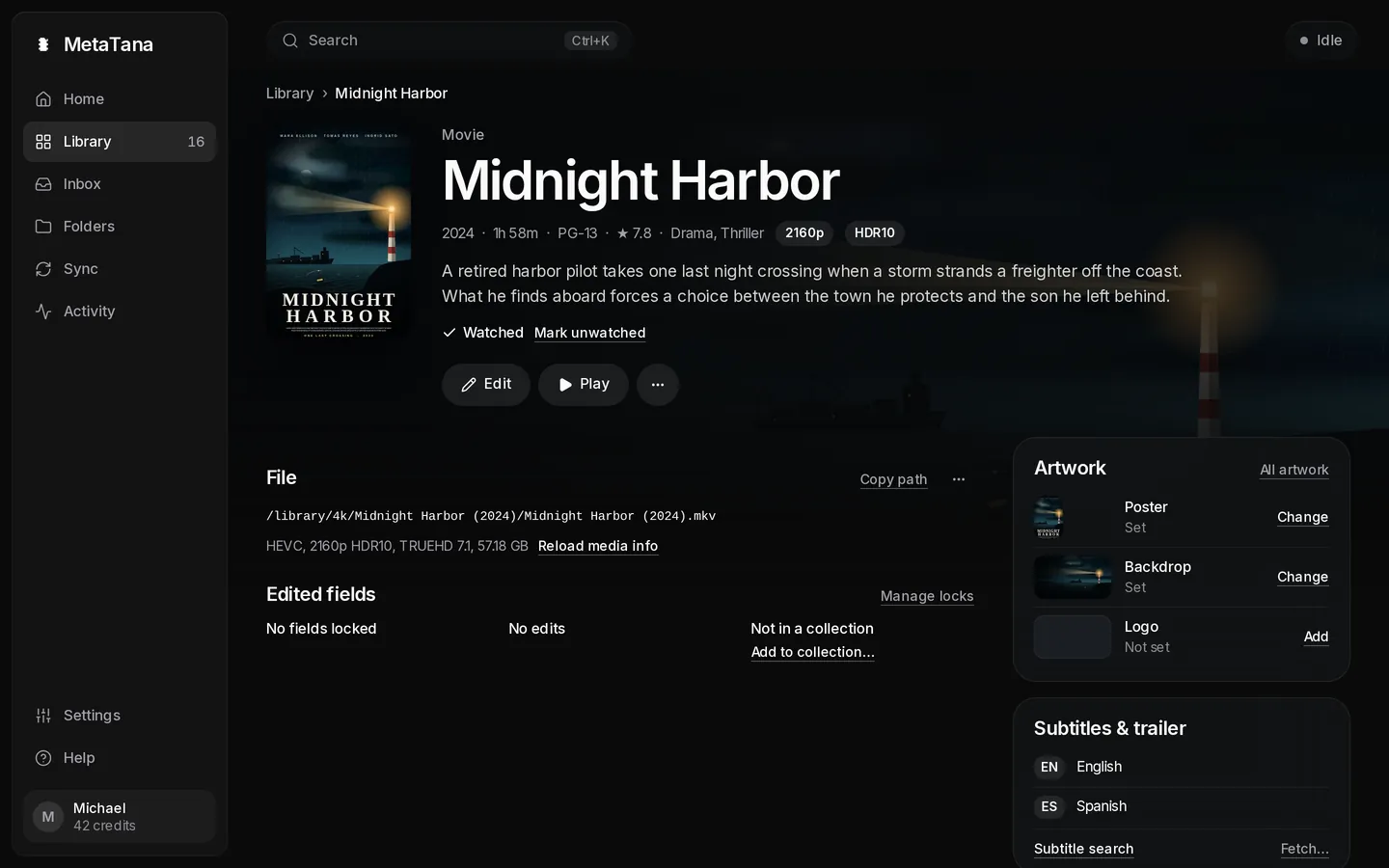
For a server connection, choose that server's preset in MetaTana. Review and write the files it supports, refresh the server, and check the result there before checking Infuse.
For a direct share, start with naming and match review. MetaTana has no dedicated Infuse artwork preset or direct Infuse sync. Local artwork may need manual naming, and you should check which NFO fields Infuse displays before relying on them.
Set Rename files in this folder to Ask first or Never while you try it. Free scraping uses your own free TMDb API key. Pro includes hosted metadata without a key.
Download MetaTana, or see the Infuse library preparation page to choose a workflow for your connection.